
FPS Performance Monitor
Real-time frame rate testing and performance analysis
Real-time Performance Graph
Stress Test Controls
Introduction: Test Your FPS Instantly in Your Browser
When you play a game, stream, or use graphics-heavy software, one factor determines how smooth your experience feels. That factor is FPS, or frames per second. In simple words, FPS is the number of images your device can display every second. A higher FPS makes gameplay smoother and more responsive. A lower FPS creates stutters, lag, and delayed reactions that can ruin the experience.
This is why checking and monitoring FPS is so important. Competitive gamers aim for 120 fps, casual players often target a stable 60 fps, while others simply want to know how well their device performs. Measuring FPS helps with optimizing settings, upgrading hardware, and fixing performance issues.
On this page you do not need to download software or install anything. You can run a free browser FPS test directly here. The tool works across PC, laptop, Mac, Android, iOS, Xbox and PlayStation. It includes stress elements that simulate heavy gameplay and generates a detailed PDF report once the test is finished.
Scroll up, click Start Test, and see how many frames per second your device is producing.
Table of Contents
Run the Free FPS Test Tool
You can test FPS right here on this page. The tool is completely free and runs directly in your browser. There is no need to download or install any software. It works on every device including PC, laptop, Mac, Android, iOS, Xbox and PlayStation.
To start, press the Start Test button below. The FPS counter will run in real time and show you how many frames per second your device is producing. If you want to push your system harder, you can enable stress mode. This option simulates heavy gameplay to measure performance under load.
Once the FPS test is complete you can download a PDF report with all the results. This makes it easy to compare performance across devices or share results with friends.
How to use the FPS checker:
- Click Start Test.
- Watch the FPS counter display live results.
- Switch to stress mode if you want to measure FPS under pressure.
- Download the PDF report when the test is done.
This browser FPS test is fast, accurate, and works everywhere. Try it now and see how well your device handles real-world performance.
What Is FPS and Why It Matters
Understanding FPS
FPS stands for frames per second. It measures how many images your device can display in one second. A higher FPS means smoother visuals and faster response. A lower FPS makes games feel laggy and less enjoyable.
Why FPS Is Important in Gaming
- Smooth gameplay: Higher FPS reduces stuttering.
- Faster reaction time: In competitive shooters, milliseconds matter.
- Better immersion: Movies and casual games may look fine at 30 fps, but action-heavy games feel much better at 60 fps or more.
- Performance check: FPS is a quick way to know how powerful your device really is.
Comparing Frame Rates
| Frame Rate | Experience | Best For |
|---|---|---|
| 30 FPS | Playable but not very smooth | Story-based games, casual play |
| 60 FPS | Smooth and responsive | Most modern games, esports standard |
| 120 FPS | Extremely fluid and fast | Competitive gaming, high-refresh monitors |
Common FPS Questions
- What is FPS in gaming? It is the speed at which frames are shown on your screen.
- Can the human eye see 120 FPS? While the eye does not see in frames, players can feel smoother motion and reduced input delay at higher frame rates.
- Why does 30 vs 60 FPS matter? Because doubling the frame rate makes motion more natural and improves reaction accuracy.
Measuring FPS helps gamers decide whether to lower settings for smoother play, upgrade hardware, or simply enjoy the game at its best possible performance.
FPS Test Across All Devices
Our free FPS test works on every major platform. Whether you are on a high-end gaming PC, a casual laptop, a Mac, or even a console or mobile device, you can run the same test directly in your browser.
FPS Test on PC and Laptops
PC and laptop gamers often want to check FPS on PC to see how well their hardware handles modern games. FPS depends on the graphics card, processor, RAM, and even cooling. Running the browser FPS test shows if your system can keep a stable frame rate.
| Platform | Common Uses | Why FPS Testing Helps |
|---|---|---|
| Gaming PCs | Esports, AAA titles | Ensures system handles high refresh rates |
| Laptops | Portable gaming, casual play | Shows if laptop hardware can keep up |
| Windows PCs | Most common setup | Optimize drivers and settings for better fps |
| MacBooks | Less gaming focus | Still useful for performance and visuals |
FPS Test on Mobile (Android and iOS)
Mobile gaming is bigger than ever. From competitive shooters to RPGs, mobile devices push graphics harder each year. With our FPS test you can quickly measure how smooth your phone or tablet performs.
- Android FPS Test: Works across all major brands including Samsung, Xiaomi, and OnePlus.
- iOS FPS Test: Runs smoothly on iPhones and iPads without any installation.
This makes it easy to see if your device can keep a stable 60 fps or even reach 120 fps on supported displays.
FPS Test on Consoles (Xbox and PlayStation)
Console players also care about performance. Many modern titles advertise 120 fps support, but not every console runs the same.
- Xbox Series X FPS: Known for high performance and 120 fps support in many games.
- Xbox Series S FPS: More budget-friendly but often runs at 60 fps or dynamic resolutions.
- PlayStation 5 FPS: Delivers smooth performance, with many titles supporting 60 fps and some hitting 120 fps.
By running the browser FPS test on your console browser, you can confirm if your system meets expectations.
Cross-Device Advantage
Because this FPS checker runs in the browser, you can test all your devices from the same place. This makes it simple to compare a gaming PC with a console, or check whether your phone is keeping up with your laptop.
FPS in Gaming : Performance and Experience
When it comes to gaming, FPS isn’t just a technical metric it’s the difference between smooth gameplay and frustrating stutters. Whether you’re a casual player or a competitive esports enthusiast, maintaining a high and stable frame rate is crucial.
Why FPS Matters in Gaming
Frames Per Second (FPS) plays a major role in how smooth, responsive, and enjoyable a game feels.
Smooth Visuals
Higher FPS makes on-screen movement fluid, reducing stutter and visual blur during fast motion.
Better Responsiveness
With more frames displayed each second, your inputs register faster. This is especially important in fast-paced shooters and competitive games.
Competitive Advantage
In online gaming, even a 10–20 FPS difference can improve reaction time, accuracy, and overall performance.
Deeper Immersion
A stable FPS makes environments feel more realistic, helping players stay immersed without distracting frame drops.
Best FPS Ranges for Gaming
30 FPS
Playable but noticeably slow. Common on older consoles and in casual or story-based games.
60 FPS
Smooth and enjoyable. This is the standard target for most modern games and systems.
120 FPS
Significantly more responsive. Ideal for high-refresh monitors and competitive gaming.
144+ FPS
Ultra-smooth performance designed for esports players and high-end gaming PCs.
Popular Games for FPS Testing
Some games are frequently used to test FPS because of their popularity or hardware demands.
Counter-Strike 2
A fast esports shooter that highlights high-FPS performance and input responsiveness.
Call of Duty Warzone
Demands both CPU and GPU power, making it ideal for stress testing.
Fortnite
Well optimized, yet useful for comparing FPS across different devices.
Cyberpunk 2077
One of the most graphically demanding games, perfect for GPU benchmarking.
Valorant
Lightweight but excellent for testing high-refresh-rate monitors.
Minecraft with Shaders
Surprisingly demanding when modded, pushing both CPU and GPU limits.
60 FPS vs 120 FPS – Does It Really Matter?
The difference between 60 FPS and 120 FPS depends on your hardware and playstyle.
On a 120 Hz or 144 Hz monitor, the improvement is instantly noticeable. Movements feel smoother, aiming feels faster, and competitive performance improves.
On a 60 Hz monitor, higher FPS still helps by reducing input lag, even if every frame isn’t displayed on screen.
Browser-Based FPS Checker vs Traditional Tools
There are two main ways to test FPS: browser-based tools and traditional software. Each has its own strengths.
Traditional FPS Testing Tools
Classic FPS monitoring options include:
Fraps, one of the earliest FPS tools, though no longer updated
MSI Afterburner with RivaTuner for advanced real-time overlays
Built-in in-game FPS counters from Steam or GeForce Experience
Benchmark software like 3DMark for GPU stress testing
These tools offer detailed data but usually require installation and setup.
Browser-Based FPS Testers
Online FPS checkers focus on speed and convenience.
They require no installation and run instantly in your browser.
They work across multiple devices, including PCs, laptops, and mobile devices.
They are lightweight and don’t heavily impact system performance.
They are ideal for quick checks and casual users.
Browser-Based vs Traditional FPS Tools
Installation
Browser-based tools need no downloads, while traditional tools require setup.
Compatibility
Browser tools work on nearly any device. Traditional tools are mostly PC-only.
Accuracy
Browser tools are good for general FPS insights. Traditional tools offer more precise metrics.
Ease of Use
Browser tools are beginner-friendly. Traditional tools can feel complex.
System Impact
Browser tools use minimal resources. Traditional tools may increase CPU or GPU usage.
Which One Should You Use?
If you’re a competitive gamer, PC builder, or performance enthusiast, traditional FPS tools provide deeper insights.
If you want quick, simple FPS results on any device, a browser-based FPS checker is the better choice.
FPS Testing on PC, Mobile, and Console – Real Examples
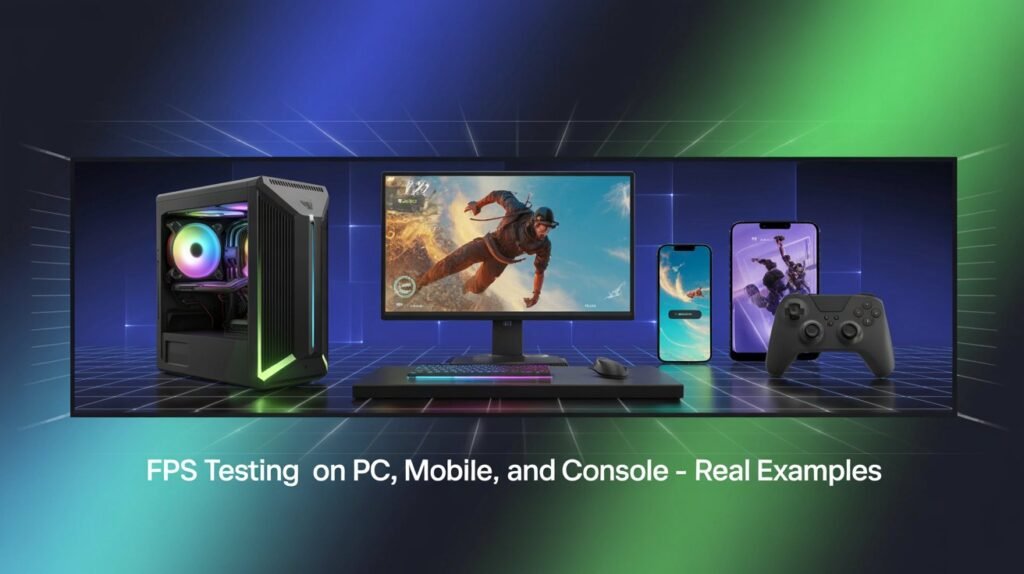
Testing FPS isn’t just about numbers it’s about how smoothly your games run across different devices. Here’s what FPS testing typically looks like on PC, mobile, and consoles.
FPS Testing on PC
- PCs with dedicated GPUs (NVIDIA RTX, AMD Radeon) can hit high FPS in competitive games like Valorant, CS:GO, and Fortnite.
- High refresh rate monitors (144Hz, 240Hz) reveal the full benefit of higher FPS.
- Browser-based FPS testers run smoothly and closely reflect in-game frame rates.
FPS Testing on Mobile
- Mobile gaming is capped by hardware and thermal limits.
- Many budget devices run games like PUBG Mobile or Call of Duty Mobile at 30–60 FPS, while flagship phones can push up to 120 FPS.
- The FPS tester helps check whether your device consistently maintains its advertised performance.
FPS Testing on Consoles
- Consoles like the PlayStation 5 and Xbox Series X target 60 FPS in most titles, with some games supporting 120 FPS in performance mode.
- Older consoles (PS4, Xbox One) usually max out at 30–60 FPS.
- Running a browser FPS test on consoles shows how well the hardware maintains smooth rendering outside of in-game benchmarks.
Example FPS Performance by Device (Popular Games)
| Game | PC (RTX 3060) | Mobile (Flagship 2025) | Console (PS5) |
|---|---|---|---|
| Fortnite | 120–200 FPS | 60–120 FPS | 60–120 FPS |
| Valorant | 200+ FPS | 60 FPS | N/A |
| GTA V | 80–100 FPS | 30–60 FPS | 60 FPS |
| Call of Duty: Warzone | 100–140 FPS | 45–60 FPS | 60–120 FPS |
Note: These numbers vary depending on resolution, settings, and hardware condition.
Why This Matters
FPS testers let you measure performance across devices without installing extra software.
Competitive players benefit most from higher FPS (smooth aiming, reduced input lag).
Casual gamers still get an enjoyable experience at 60 FPS.
Understanding FPS Drops and Stutters
One of the biggest frustrations for gamers is when FPS suddenly drops or the game starts stuttering. Even if your system is powerful, performance can dip due to several reasons. An FPS tester helps you identify these issues by showing real-time fluctuations.
Common Causes of FPS Drops
- Overheating: When CPU or GPU gets too hot, it throttles performance.
- Background apps: Programs running in the background (browsers, updaters, streaming apps) consume resources.
- Weak hardware: Entry-level GPUs or integrated graphics may struggle with demanding games.
- Drivers not updated: Outdated graphics drivers can lead to poor optimization.
- Network issues (for online games): Lag spikes may appear as stuttering even if FPS is stable.
Troubleshooting FPS Drops – Quick Guide
| Problem | Cause | Fix |
|---|---|---|
| Sudden FPS drop after 15–20 min | Overheating (thermal throttling) | Clean fans, improve cooling, lower graphics settings |
| FPS drops when multitasking | Too many background processes | Close unnecessary apps, disable startup programs |
| Stuttering in online games | Network latency / packet loss | Use wired connection, check router, optimize Wi-Fi |
| Low FPS in new games | Hardware not powerful enough | Lower resolution, use performance mode, upgrade GPU/CPU |
| Random FPS dips after updates | Outdated or buggy drivers | Update/reinstall GPU drivers |
How an FPS Tester Helps
Reveals whether issues are system-related (CPU/GPU) or network-related (in multiplayer).
Shows live frame drops, letting you spot patterns (e.g., every 5 minutes when CPU overheats).
Helps compare before-and-after performance after fixes.
Advanced Uses of FPS Testing – Beyond Gaming
While FPS testing is often associated with gaming, it has much broader applications. Many industries and everyday users can benefit from knowing how smoothly their systems handle real-time visuals.
1. Video Editing and Rendering
- Editors working in software like Adobe Premiere Pro, DaVinci Resolve, or Final Cut Pro rely on smooth previews.
- Low FPS in timeline playback can cause delays when syncing video and audio.
- Running an FPS test helps ensure your GPU can handle 4K or even 8K footage without stuttering.
2. Virtual Reality (VR) and Augmented Reality (AR)
- VR requires extremely stable FPS (usually 90 FPS or higher) for comfort.
- Any dip in frame rate can cause motion sickness or disrupt immersion.
- FPS testing lets developers fine-tune VR apps to maintain smooth performance.
3. Streaming and Content Creation
- Streamers on Twitch or YouTube need to balance game FPS with encoding performance.
- A browser-based FPS test shows whether your PC can stream and game simultaneously without frame loss.
- This ensures smoother live broadcasts and better viewer experience.
4. Software Testing and Development
- Game developers and app testers use FPS monitoring to evaluate performance bottlenecks.
- FPS testers reveal how code optimizations impact real-world performance.
- For cross-platform apps, developers can compare FPS across Windows, macOS, Linux, Android, and iOS.
5. AI and Simulation Workloads
- Researchers running AI models, 3D simulations, or physics engines also need FPS stability.
- FPS testing confirms whether the system can handle real-time visualization without lag.
Why It Matters Beyond Gaming
| Use Case | Target FPS | Why It Matters |
|---|---|---|
| Video Editing | 30–60 FPS | Smooth previews, accurate edits |
| VR/AR | 90+ FPS | Prevents motion sickness |
| Streaming | 60 FPS | Stable broadcast quality |
| Game Development | Variable | Test across multiple systems |
| AI/Simulations | 30–120 FPS | Ensures real-time responsiveness |
Frequently Asked Questions (FAQs) About FPS Testing
1. What is a good FPS for gaming?
For most modern games, 60 FPS is considered the baseline for smooth gameplay. Competitive gamers often aim for 120 FPS or higher, while cinematic experiences can feel fine at 30 FPS.
2. Can I run an FPS test on my phone or tablet?
Yes. Since this tool is browser-based, you can run an FPS test on any device, including smartphones, tablets, laptops, and desktops, without installing extra software.
3. Does higher FPS mean better graphics?
Not necessarily. FPS measures frame smoothness, not graphics quality. You can have high FPS at low graphics settings, or lower FPS at ultra settings. The best experience comes from balancing both.
4. Is 144 FPS better than 60 FPS?
Yes, especially on monitors with a 144Hz refresh rate or higher. The difference is noticeable in fast-paced games where smooth response times are critical.
5. Will an FPS test damage my device?
No. An FPS test simply measures your device’s performance. It doesn’t overclock or stress your system beyond normal usage.
6. Why does my FPS drop during gameplay?
FPS drops are usually caused by:
- Insufficient GPU or CPU performance
- Background apps using system resources
- Overheating (thermal throttling)
- Running at very high graphics settings
7. Can I improve FPS without upgrading hardware?
Yes, you can:
- Lower graphics settings
- Close unnecessary apps
- Update GPU drivers
- Enable game mode or performance mode on your device
8. Does FPS testing work for consoles like PlayStation and Xbox?
Yes, if you access the browser-based FPS test through the console’s web browser, you can measure frame rates on those devices as well.
9. Is FPS the same as refresh rate (Hz)?
No. FPS is how many frames your GPU renders per second. Refresh rate (Hz) is how many frames your monitor can display per second. For the smoothest experience, FPS should match or exceed your display’s refresh rate.
Conclusion and Final Thoughts on FPS Testing
FPS testing has moved far beyond being just a tool for gamers. Whether you’re a casual player, a competitive eSports athlete, a video editor, or even a VR developer, knowing your system’s frame rate is crucial. Smooth visuals don’t just make games and media more enjoyable they directly impact performance, accuracy, and overall experience.
With a free browser-based FPS test, you no longer need expensive software or complicated setup. You can check performance on any device PC, laptop, mobile, or console within seconds. Plus, advanced features like real-time monitoring, detailed FPS graphs, and automatic reports give you a complete picture of how your system handles demanding tasks.
At the end of the day, FPS testing is about more than numbers. It’s about unlocking your system’s full potential, identifying weak points, and ensuring that your experience whether in gaming, streaming, or professional work is as smooth as possible.
If you haven’t already, try running a free FPS test in your browser today. It’s quick, accurate, and works across all platforms, giving you the insights you need to optimize your setup for the best performance possible.